Your First Login
What this is
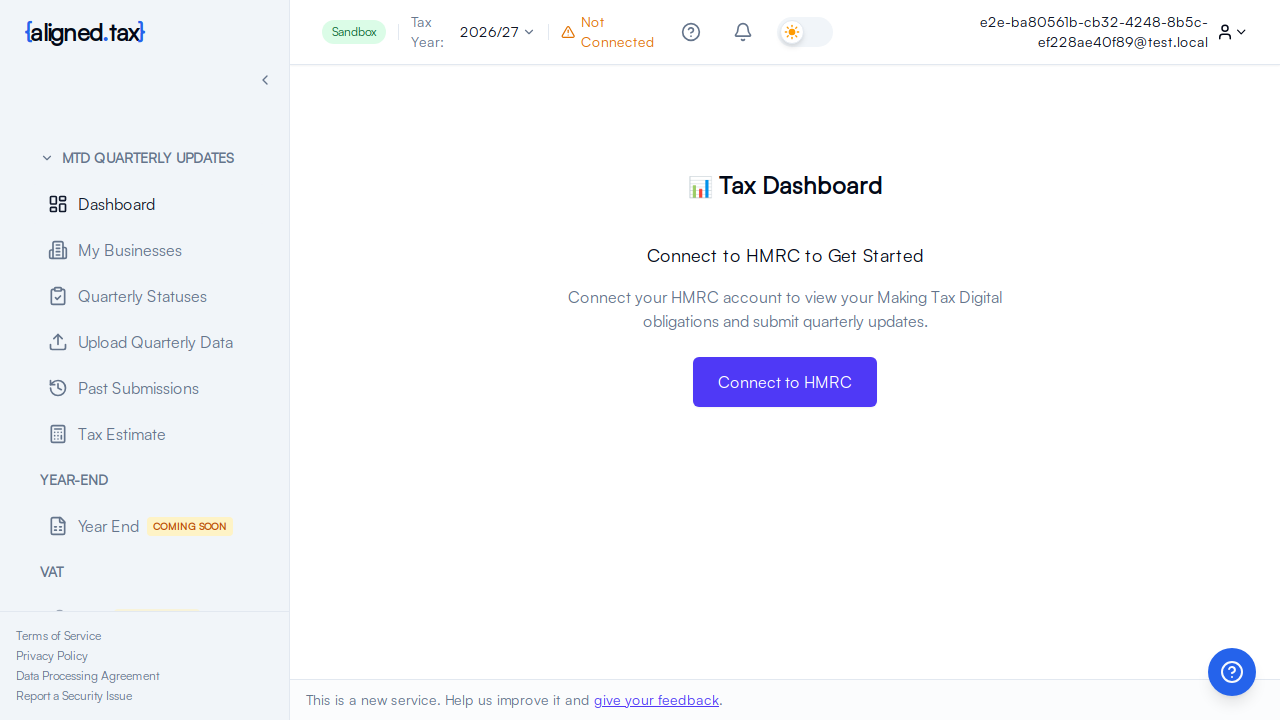
When you first log in as an individual, you are taken to the Get Started with HMRC page. This is where you enter your National Insurance number and connect to HMRC. Once connected, you land on your personal Dashboard - the central place for managing your MTD submissions. This guide walks you through what you see and the steps to start filing your returns.
What you see on screen
On your first login, the Get Started page at /app/hmrc/get-started shows:
- A National Insurance number input field - enter your NINO to identify yourself to HMRC
- A “What happens next” checklist - showing the four steps of the connection process
- A Connect to HMRC button - enabled once you enter a valid NINO
- The sidebar on the left with navigation sections
- The header at the top with the Aligned logo, your tax year selector dropdown, notifications bell, and the help assistant icon
The sidebar includes these items:
- Dashboard - your personal overview (you are here)
- My Businesses - manage your business income sources
- Quarterly Statuses - see which quarters are open, fulfilled, or overdue
- Upload Quarterly Data - upload your spreadsheet
- Past Submissions - view your submission history
- Tax Estimate - in-year tax calculation
How to get started
Follow these steps to set up your account and start filing:
Step 1: Connect to HMRC
You need to authorise Aligned to communicate with HMRC on your behalf. This is a secure process using your National Insurance number and Government Gateway credentials.
- Enter your National Insurance number on the Get Started page (format: AA 12 34 56 A)
- Click Connect to HMRC
- You will be redirected to the HMRC Government Gateway login page
- Sign in with your Government Gateway user ID and password
- Grant Aligned permission to access your MTD data
- Watch the progress page as Aligned checks your MTD status, fetches your businesses, and loads your obligations
- You will be redirected to your dashboard once setup is complete
Step 2: Check your obligations
Once connected, your dashboard will populate with your tax obligations:
- Your quarterly deadlines will appear showing which periods are open
- Check the Quarterly Statuses page for a detailed view of all your obligations
- Note any upcoming deadlines - these are the quarters you need to submit data for
Step 3: Upload your first spreadsheet
When you are ready to submit your quarterly data:
- Go to Upload Quarterly Data in the sidebar
- Upload an Excel file (.xlsx) - or download the pre-formatted template first
- Use Smart Map to match your spreadsheet columns to HMRC fields
- Review your data and submit to HMRC
Things to know
- Government Gateway credentials are required. You need an active Government Gateway account registered for Self Assessment to connect with HMRC. If you do not have one, register at gov.uk.
- Your connection is secure. Aligned uses the official HMRC OAuth process. Your Government Gateway password is never stored by Aligned - only a secure authorisation token.
- Tokens expire periodically. If your connection to HMRC expires, you will be prompted to reconnect. This is normal and only takes a moment.
- The tax year selector in the header controls which tax year’s data you see. Make sure it is set to the correct year before uploading or reviewing.
FAQ
What is Government Gateway?
Government Gateway is HMRC’s login system for accessing online tax services. If you are registered for Self Assessment, you already have a Government Gateway account. If not, you can create one at gov.uk.
Why do I need to authorise Aligned?
HMRC requires that any software acting on your behalf has your explicit permission. The authorisation process confirms that you consent to Aligned retrieving your obligations and submitting returns for you. This is a legal requirement of Making Tax Digital.
What if my HMRC connection stops working?
Authorisation tokens expire after a set period. When this happens, you will be taken to the Get Started page with “Reconnect to HMRC” and your NINO pre-filled. Simply click through the authorisation process again - it only takes a few seconds since HMRC remembers your previous consent.